Setup and connection guidance for iPhone / iPad: verify the App Store listing, import your existing configuration, and understand rule-based routing. The app is a one-time purchase; connection services are managed separately.
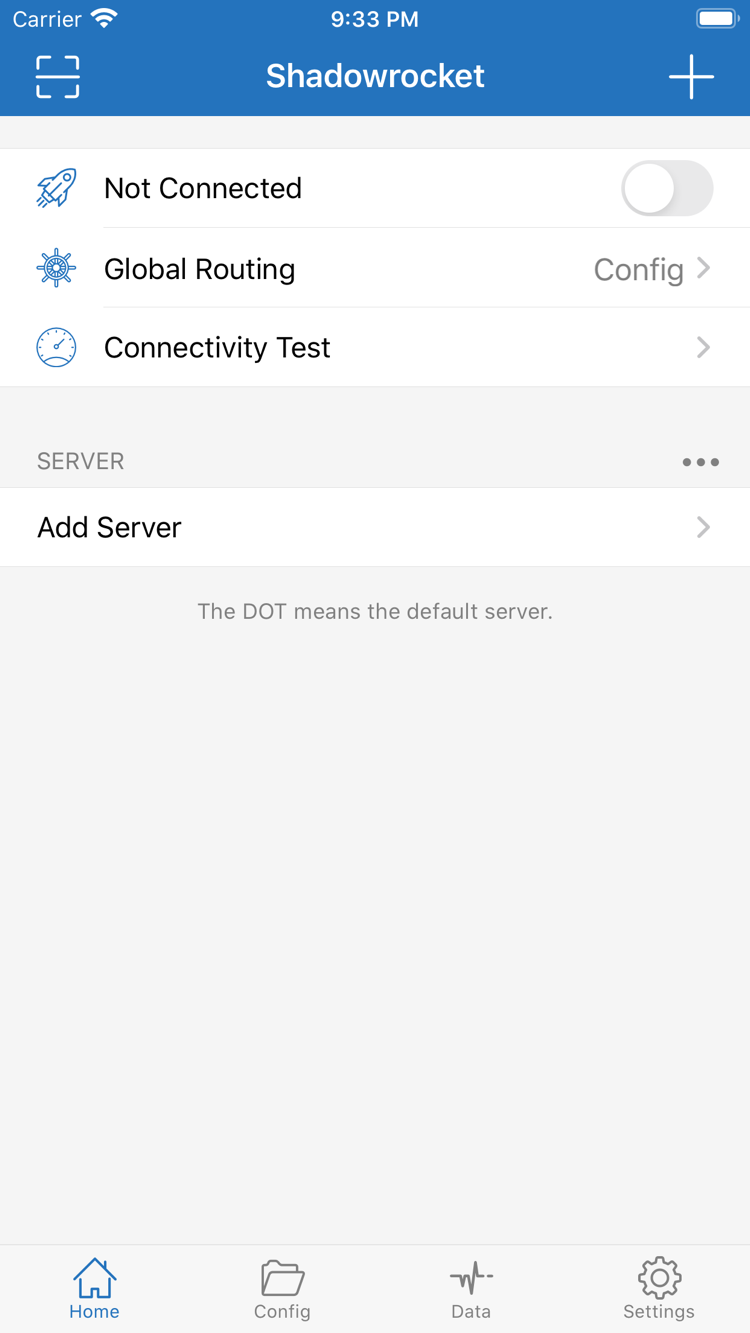
Shadowrocket Home screen · Connection and configuration controls
App Store
Verify the official listing first
Compare the developer, official icon, and app ID on the App Store listing. Apple manages purchase records. Check the listing for device compatibility, system requirements, and local pricing.
Prepare a subscription or server details you already have, verify the protocol and fields, then import them. Server entries, subscription groups, and rule configurations serve different purposes; importing one does not mean the others are set up.
First confirm Global Routing, then check the active Config and rule order. The domains in this example illustrate syntax; they are not a complete, ready-to-use configuration. FINAL handles connections that do not match any earlier rule.
Connection methods, matching rules, and server details need to be checked separately. The sections below use the app’s interface labels to explain where settings are and what they do. When troubleshooting, identify which layer is causing the issue before changing anything; adjusting several settings at once makes the cause harder to pinpoint.
Global Routing
Choose how connections are handled
In Home, choose Config, Proxy, or Direct under Global Routing. Config applies the active configuration and is useful for checking rule-based routing. Proxy sends connections through the selected proxy policy; Direct connects directly. These options describe how connections are handled, not whether a connection succeeded. For rule-based use, first confirm Config is selected, then check the active configuration and server. During troubleshooting, you can switch modes briefly for comparison, then restore the original setting so you do not mistake a mode difference for a broken rule.
Triggers connections; does not replace configuration
On Demand triggers connections when specified conditions are met. Check its options in Settings. It controls when to connect; it does not fix server addresses, credentials, or rules. First establish a connection manually and verify access, then configure conditions one at a time. If the connection comes back after you turn it off, check whether On Demand is still active instead of repeatedly deleting configurations. Test what happens when switching networks on the device. Before changing conditions, note the original settings and confirm that system VPN permissions match the in-app switch.
Rule in Config determines how a connection is handled when it matches a condition. Rules are checked from top to bottom, and processing stops at the first match, so more specific domain conditions generally belong before broader ones. DIRECT connects directly, PROXY uses the proxy policy, and REJECT blocks the connection. FINAL is the fallback when no earlier condition matches and belongs at the end. Keep a copy of the original configuration before making changes, then test with a known destination. Changing rule order alone can change the policy applied to the same request.
Subscribe manages server details in subscriptions you already have. Before importing, make sure you have a valid link of your own. Updating a subscription and updating the App Store app are separate: the former refreshes server entries, while the latter updates the client. After a refresh, check the group contents, current selection, and protocol fields; the number of entries alone does not show whether they work. If a refresh fails, check the network, link validity, and content format in turn. Avoid submitting repeatedly in quick succession. Subscription URLs may contain access credentials, so remove sensitive information from screenshots, logs, and support requests.
Config stores configuration content such as General and Rule; it is separate from the server selected in Home. After switching files, recheck the active rules and related settings rather than relying on the file name. If you use iCloud-related features, check the device’s Apple Account, iCloud availability, and the app’s actual sync scope. Buying the app with the same account does not mean all data has synced. When troubleshooting for the first time, keep a verified copy of the configuration, change one item at a time, and compare results using the same destination.
[General]
bypass-system = true
dns-server = system
Connectivity Test in Home can help check a server’s response; Diagnostics in Settings provides further troubleshooting information. Different tests measure different things, and a single result cannot replace testing actual access. Data shows traffic statistics; interpret them by checking the measured item, direction, and time period. Total traffic is not the same as current speed or server-side billing. When a connection fails, check the device network, server details, Global Routing, and rule matches in that order. Review records after reproducing the issue rather than drawing conclusions from a single number.
Shadowrocket supports configurations for protocols including Shadowsocks, VMess, VLESS, Trojan, Hysteria2, and WireGuard. Similar protocol names do not mean their fields are interchangeable. In Add Server, set Type to match the server details you already have. Check the address, port, authentication details, and transport options one by one. A successful import only means the app recognized the content; it does not guarantee the remote service is reachable. If a field is unclear, check the original details instead of guessing with defaults from another protocol.
Data and diagnostic records can help show whether a request was made and which policy handled it, but read them alongside the selected server and configuration at the time. If using multiple devices, verify a basic connection on each one before considering sync or automatic connections. This helps distinguish device-specific settings from server issues. Available settings and their locations depend on what appears in the app. For terminology, see the glossary.
Device setup
Getting Shadowrocket on iPhone and iPad
Get Shadowrocket for both devices from the same App Store listing. First check the Apple Account you intend to use for the purchase, then check device compatibility. The listing has the latest information about purchase eligibility, Family Sharing, and system requirements.
iPhone
After purchasing the app on the App Store or restoring it from your purchases, make sure Home opens normally. The first time you connect, iOS will ask permission to add a VPN configuration. This authorization creates a system connection entry; it is not server information. After allowing it, select a server you already have and test actual access. A connected status in the system does not guarantee that every destination is routed as expected.
If you have already purchased Shadowrocket with the same Apple Account, look for it in your iPad purchases. Whether it can be restored depends on the App Store listing and your account records. The landscape layout may differ from iPhone, but you still need to check the selected server, Config, and Global Routing. Restoring a purchase is not the same as restoring configuration data; after switching devices, recheck everything needed to connect.
Shadowrocket is also available on Mac and Apple TV through the same App Store. Check the listing for compatibility.
If the app does not appear in search results, first check the current storefront region and purchase account, then use the product page to verify availability. App visibility and device compatibility are separate checks; repeating the name search may not reveal the cause.
First establish a manual connection that you can reproduce, then configure automatic options. The three steps below assume you already have your own subscription or server details. This guide explains how to import and check existing information; it does not provide nodes or subscriptions.
01
Add Server: add details you already have
In Home, open Add Server, choose Type to match the original details, then enter or import the required fields. If you already have a QR code, use Scan QR Code. If you already have a subscription, follow the subscription import steps. First confirm that the imported entry is in the expected group, then open its details and check the address, port, and authentication information. A name is only a label; it does not identify the protocol or confirm that the entry works.
If the content comes from the clipboard, check that it was copied in full and does not contain extra notes, spaces, or line breaks. Before saving, confirm that the input type matches your details; after saving, select the server you want to use. Subscription links may contain access credentials, so keep them secure. When sharing troubleshooting details, include only what is needed and do not reveal the full link or authentication information.
02
Global Routing: check the mode and Config
To handle connections according to rules, select Config and check which file is active in Config. A file appearing in the list does not mean it is selected or that every rule in it suits your needs. Review the main content in General and Rule, confirm the order of domain rules, address rules, and FINAL, then test.
Proxy and Direct can help compare connection handling, but they cannot fix incorrect server details. If behavior changes after switching, note the mode, server, and destination, then check the relevant rules. Example rule snippets explain syntax only; do not replace an entire configuration without the full context. Keep a restorable copy before each change.
03
Connect: authorize, then test real requests
Turn on the connection switch in Home. The first time, follow the system prompt to allow a VPN configuration. Then run Connectivity Test and try accessing a destination you know. A successful test, an active VPN status, and successful access to a destination each reflect a different part of the process; consider them together rather than relying on just one status.
If connection fails, check the device’s existing network, selected server, Global Routing, and configuration rules in that order. Start with the simplest verifiable setup, then add custom rules and On Demand one at a time. If only one destination is affected, focus on its rule match. If all destinations are affected, check the network and server details first. See the complete guide for more step-by-step instructions.
Shadowrocket is a paid, closed-source app. Get, purchase, and update it through the App Store. This official guide explains the App Store listing and in-app settings; a similar name or icon is not proof of authenticity.
Check the developer, icon, and app ID
On the product page, first confirm the app is named Shadowrocket, then verify the developer is Shadow Launch Technology Limited. The official icon should match the one shown on this page. The app ID in the product page URL is 932747118. Search results may include similarly named apps, so check all three details together rather than relying on a single keyword in the title.
The developer identifies the publisher, the icon helps identify the app, and the app ID confirms the specific product page. Check them again before purchasing. If any detail does not match, return to the specified product page rather than deciding based on search ranking or similar screenshots.
Store region and device compatibility are separate
App Store availability depends on the current storefront region. Device language, physical location, and storefront region are separate settings. If you cannot find the app, check the Apple Account used for App Store purchases and its storefront region, then see whether the product page is available. Being able to open the web page does not guarantee that the account can complete a purchase; follow the prompts shown in the App Store.
Check compatibility separately on the product page. Always refer to the App Store listing for system requirements; do not rely on requirements from older guides. If the purchase or get button is unavailable, note the full message from the store, then check device requirements, payment settings, and account status.
The app purchase and connection services are separate
The US storefront reference price is $2.99 as a one-time purchase; other storefronts show local currency, and the App Store page before payment displays the actual price. Buying the app does not buy a connection plan. The purchase gives you the right to use the app; you still need your own subscription or server details to connect. This site does not provide, sell, or recommend nodes or subscriptions.
Manage app updates in the App Store and subscription updates in the app; they update different things. An app update does not replace server details, and a subscription update does not change your purchase record. If you have purchased the app but do not yet have connection details, start with the configuration basics rather than assuming the purchase did not work because you cannot connect.
Restoring a purchase does not restore configuration
When changing devices or reinstalling, use the original purchase account to find Shadowrocket in your App Store purchases. You can restore the purchase on iPhone and iPad using the same account; check the App Store listing for purchase eligibility. If the page shows a price again, first confirm you are using the account associated with the original purchase instead of paying again. Family Sharing eligibility depends on the store listing and your family settings.
After restoring the app, check that your servers, subscriptions, Config, and VPN authorization are all in place. App purchases, data in iCloud, and device-local settings are separate and cannot replace one another. Before reconnecting, verify each item and make sure the synced content is the configuration you intend to use.
Once you have a basic connection, explore topics based on the issue. Traffic readings, rule order, and subscription refreshes each require a different way of checking. First identify what you are looking at, then interpret the result. These articles do not replace your own server details or assess a connection service based on a single test.
Read upload and download figures by server and app, and distinguish the reporting period, total usage, and current connection status. If a reading is zero or unexpectedly high, first check what is being measured, then confirm whether the corresponding request was made. Do not mistake a cumulative total for real-time speed.
Learn how the Rule section stops at the first match and compare PROXY, DIRECT, and REJECT. Check how the order of specific and broad conditions explains why a new rule may not take effect, and where FINAL belongs.
Distinguish manual refreshes from automatic updates when opening the app, then check link validity, network access, and content format to find the cause of a failure. After updating, recheck the current selection; a refresh message alone does not confirm that a server can connect.
If you are not sure whether the issue is with purchasing, importing, or connecting, browse the FAQs by category. For terms such as Hysteria2, IP-CIDR, and FINAL, check the glossary first, then return to the relevant settings and check them one by one.