01 · Add Server: Add a Server or Import a Subscription
First identify what information you have, then choose the right import method. A single server’s address, port, and authentication details are for manual setup; a subscription link imports a list of servers. They aren’t interchangeable—for example, don’t paste a full subscription link into Host. Make sure your device has a working internet connection. Leave the connection switch off for now and organize your server list first.
Enter Server Details Manually
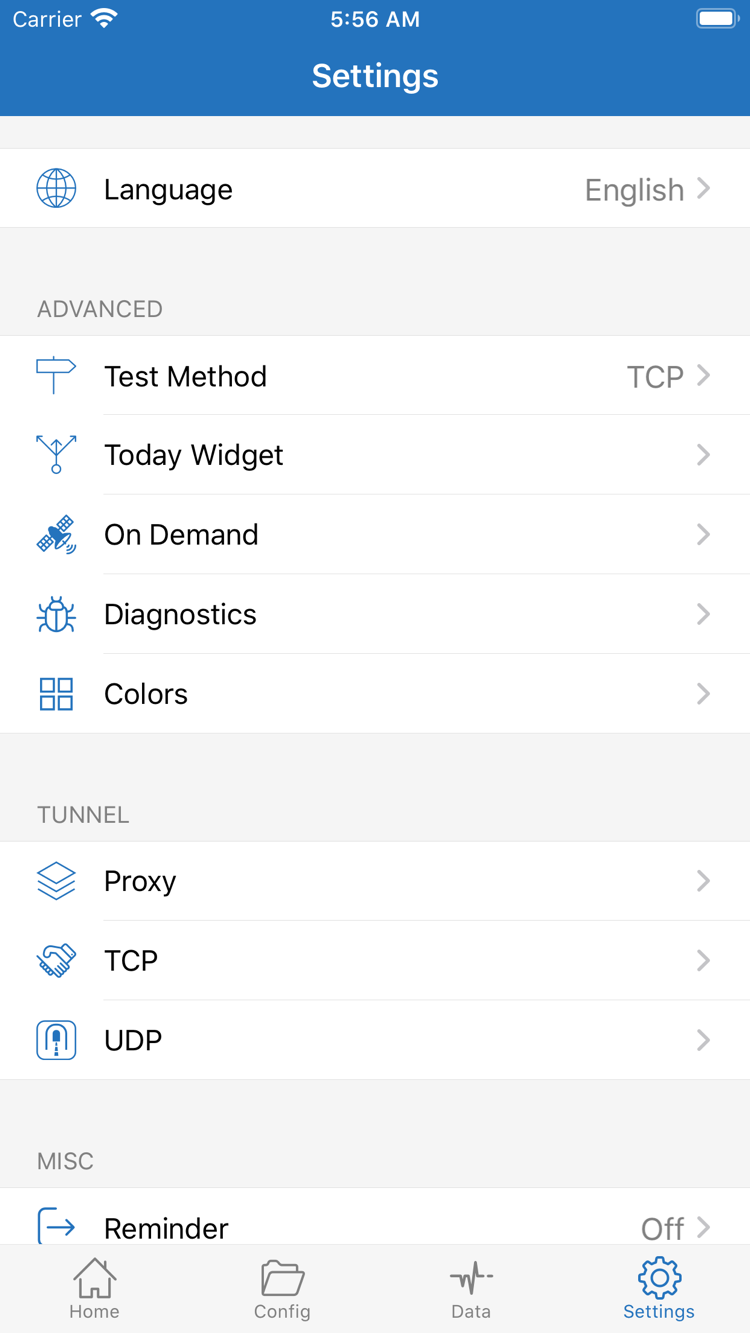
Go to Home and tap Add Server to open the corresponding screen. Tap Type and select the protocol specified in your server details, then fill in each field. For Shadowsocks, you’ll typically need to check Host, Port, Password, and Method. Available fields vary by Type, so use the form for the selected protocol rather than substituting fields from another protocol.
Enter the server address in Host and the port in Port. Authentication details and Method must match the server settings. Check for extra spaces around copied text, the port number, and letter case. If the protocol requires additional parameters, enter them using the information you already have—don’t guess based on the address. Save and return to Home, then confirm the new entry appears under SERVER. Check its label and address again to avoid selecting a similarly named server by mistake.
Import an Existing Subscription with Subscribe
If you have a subscription link, select Subscribe under Type on the Add Server screen. Paste the full link into the URL field, add a recognizable label if you like, and save. Return to Home and wait for the subscription to load. If it doesn’t load automatically, use the update option for that subscription entry. Confirm that its server list appears rather than an empty group. If the update fails, note the error and check that the link is still valid and accessible on your current network. Don’t keep adding the same link repeatedly.
If you have a compatible QR code, you can use Scan QR Code. After scanning, check the imported Type and parameters. Import from Cloud JSON is a separate option for the corresponding JSON content, not a general-purpose way to import subscription links. Subscription URLs may contain access credentials, so don’t include a full link in a public screenshot. You should now have at least one selectable server entry. Next, decide how to route traffic through it.
02 · Global Routing: Choose a Routing Mode
A server appearing in the list doesn’t mean every request will use it. Return to Home, open Global Routing, and check the current selection. The three modes are Config / Proxy / Direct; they determine how requests handled by the app are routed. Decide what you need before choosing a mode. Avoid changing server settings and switching modes at the same time, or it will be hard to tell which change affected the result.
- Config: Routes requests according to the currently selected configuration. Use it when you need rules to route traffic based on domains, addresses, or other conditions. After selecting it, check the active configuration in Config—seeing Config on the Home screen doesn’t mean the rules are set up correctly.
- Proxy: Routes requests handled by the app through a proxy path. This can help distinguish server connection issues from rule-selection issues during troubleshooting. It doesn’t mean every system request will use the same path, and it doesn’t guarantee that a destination will be reachable.
- Direct: Handles requests using a direct connection. If you’re checking the selected server’s proxy path, Direct won’t test what you intend.
Check the Active Configuration When Using Config
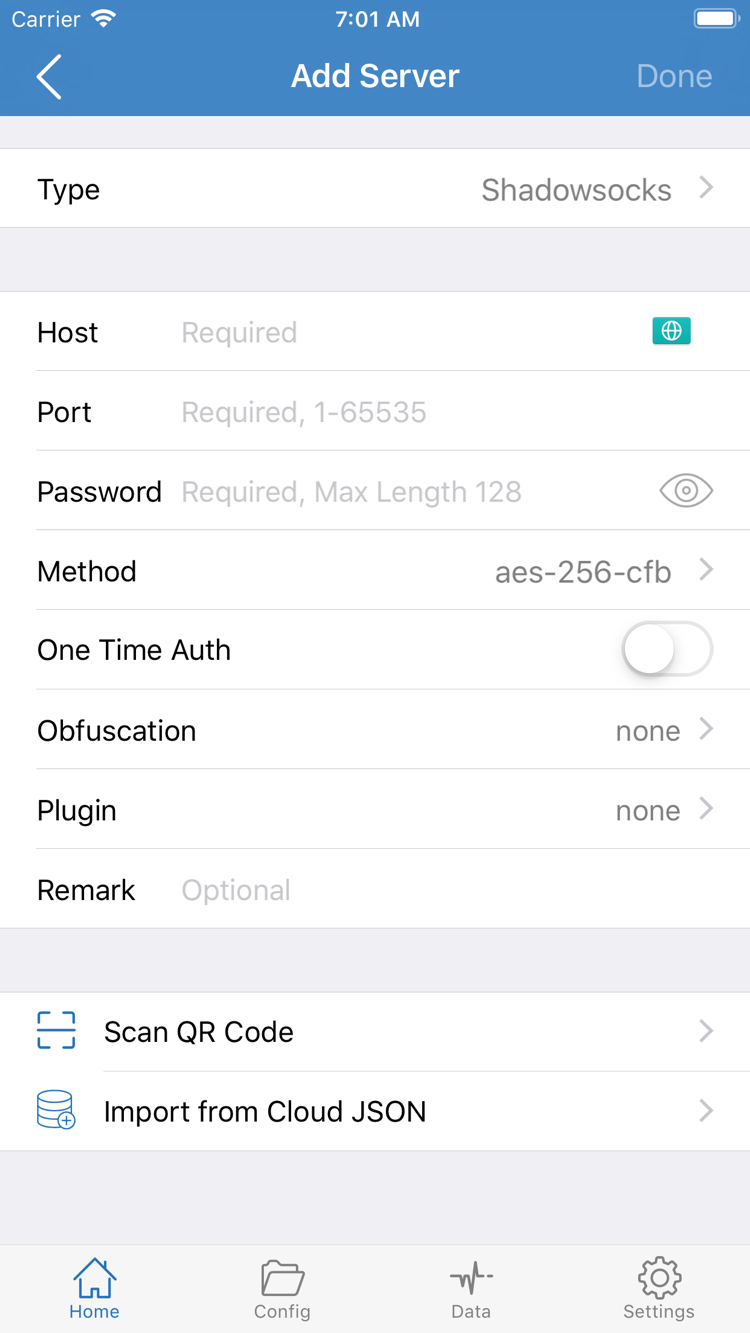
Open the Config screen and confirm which configuration file is active, then review its contents. The official screenshots show separate sections: General, Rule, Hosts, URL Rewrite, and HTTPS Decryption. For initial setup, focus on General and Rule. You don’t need to enable other features or change every setting just to establish your first connection.
Rules in Rule are generally matched from top to bottom; the first matching rule determines the policy. PROXY sends traffic to a proxy policy, DIRECT connects directly, and REJECT blocks the request. Before adding a rule with Add Rule, check both the match condition and policy, then verify where the rule will be inserted. A broad rule placed too early can prevent more specific rules below it from matching. Put FINAL last to handle requests that haven’t matched any earlier rule.
[Rule]
DOMAIN-SUFFIX,example.com,PROXY
FINAL,DIRECT
The snippet above only demonstrates syntax: it routes example.com and its subdomains through PROXY, then sends everything else to DIRECT using FINAL. It isn’t a complete configuration or a real connection test target. Don’t overwrite your existing configuration just to copy the example. Confirm the intended mode and active file, then return to Home. See the Glossary for rule keyword definitions, or the Global Routing feature guide for details.
03 · Home: Select a Server and Connect
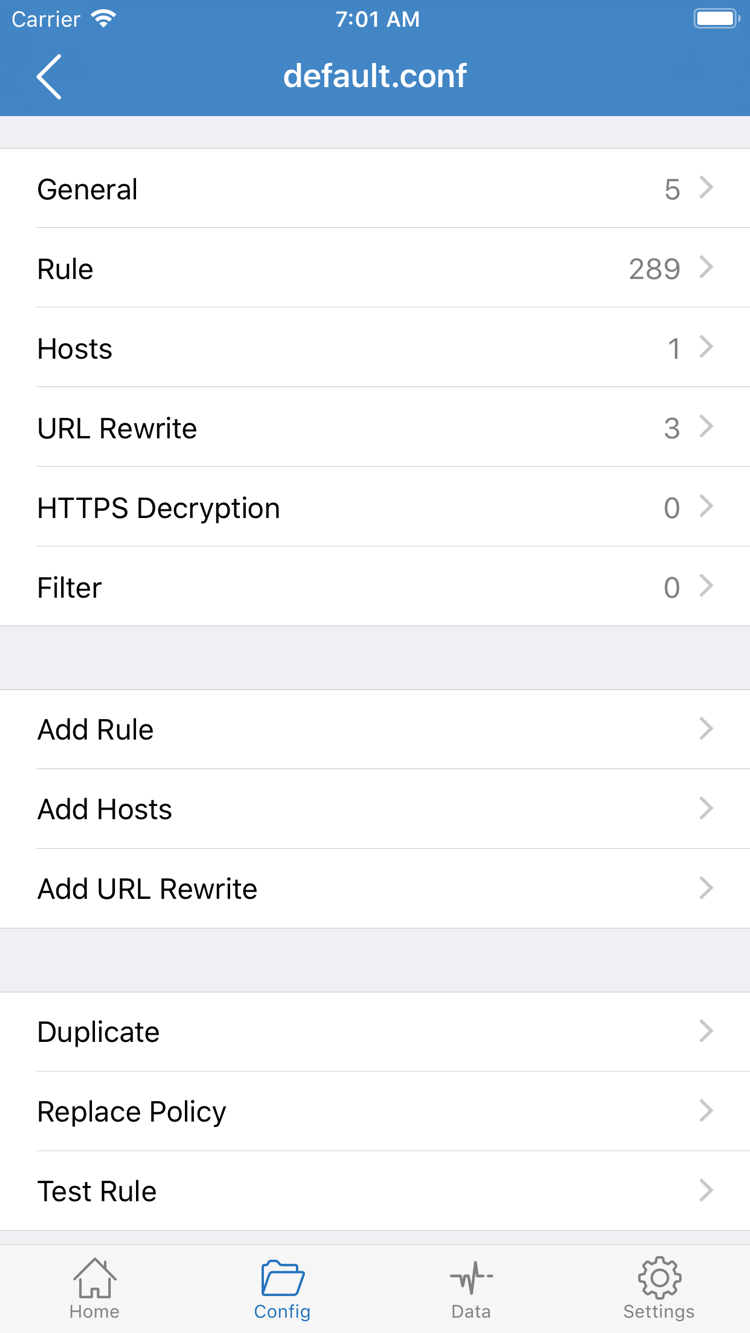
Return to Home and select the server you want to use from the SERVER list. Confirm the selection indicator is on the right entry. Servers in a subscription group may have similar labels, so check the address or label rather than choosing the first item in the list. Then check that Global Routing is still set to the mode you chose in the previous step. Server selection, routing mode, and active configuration are three separate settings; check each one.
Tap the connection switch in the area at the top of the screen that shows Not Connected. The first time you connect, the system may ask to add a VPN configuration. Review the system prompt, allow the request, and complete any required device authentication. This lets the system create the VPN configuration Shadowrocket uses; it doesn’t purchase a service or fill in server details. If you cancel, return to the app, start the connection again, and follow the system prompts to grant permission.
After granting permission, return to Home and check whether the status at the top has changed from Not Connected and the switch remains on. If it turns off immediately, don’t keep tapping it. Note the status message and follow the troubleshooting steps below. The VPN entry in system settings can help you check connection status, but it doesn’t tell you whether a server can reach a particular destination.
Follow the same steps on iPad. With more screen space, the layout may differ from the iPhone screenshots; use labels such as Home, SERVER, and Global Routing to find the right controls. For your first connection, keep the app in the foreground until you’ve connected and verified the result. You don’t need On Demand for a manual connection. If it’s already configured, check whether it reconnects automatically after you disconnect manually.
When you’re done, return to Home, turn off the connection switch, and confirm that the status changes. If the switch stays on but webpages won’t load, don’t assume that the connection is working just because it shows as connected. Check the server response, the actual request, and the selected rule separately. Only when these results align can you tell whether the connection is working as expected.
04 · Connectivity Test: Verify Actual Requests
During testing, answer one question at a time: Is the device’s network working? Is the server responding? Is the destination reachable? Is the request using the expected policy? Start with Connectivity Test in Home and review the results for each list entry. Results depend on the selected test method. They can help identify obvious failures, but they aren’t a bandwidth test and a single response doesn’t prove that every app and destination is reachable.
Next, open a browser and visit a destination you know should be reachable. Reload the page and check the result. Don’t rely on an already-open page, which may be showing cached content. To verify a rule, choose a real destination that matches its conditions. The example.com snippet in this guide only demonstrates syntax; it says nothing about whether your server is working. Keep the server and Global Routing settings unchanged during testing so you can reproduce the results.
Compare the Result with the Matched Policy
Return to Shadowrocket and review the connection log for the destination you just visited. Check the domain, time, and policy used. With Config selected, a request matching DIRECT is behaving as the rule specifies; it doesn’t indicate a failure just because it didn’t use PROXY. Conversely, if a request that should use a proxy matches DIRECT, check the Rule order and FINAL. The logged domain may differ from what’s in the address bar because the page may also request images, scripts, and other resources. Use the timestamp to identify the right entries.
You can also check Data to see whether upload and download counters change. Increasing traffic only shows that data is being transferred; it doesn’t prove that a specific destination used the expected policy. Background activity can also affect the counters, so a more reliable approach is to make a specific request and then check its corresponding log entry. Likewise, a VPN-connected status only indicates the system’s connection state; it doesn’t confirm server authentication, DNS resolution, or access to a destination.
If a test fails, note which layer failed before moving on to troubleshooting. If both the test and actual browsing work, keep the current configuration instead of repeatedly changing settings to chase a particular test result. See Diagnostics Tools for more on test methods and tools, and the Glossary for terms related to connection logs and statistics.
05 · Settings: Troubleshoot by Failure Point
Change one setting at a time and repeat the same test from the previous step after each change. First note the selected server, Global Routing mode, configuration file, and error message. Then check the following items in order. This makes it easier to identify the source of the problem and restore the original settings if a change doesn’t help. Don’t start by deleting all your configurations.
- Check your device’s network first. Disconnect Shadowrocket and make sure your current Wi-Fi or cellular connection can access ordinary websites. If the network requires sign-in, complete that first. If the underlying network isn’t working, fix it before changing your server password.
- Check the server list and selection. Return to Home and confirm which entry is selected. A successful subscription update doesn’t mean the server you want was selected automatically. If the list is empty, go back to Subscribe and check for update errors, confirm the link is valid, and see whether it loaded correctly.
- Check the protocol and authentication details. Open the relevant server entry and verify Type, Host, Port, and authentication details. Some protocols require additional parameters; compare them with the server information you already have. Subscription-managed entries may be overwritten during the next update, so don’t use temporary manual edits to mask an issue with the source information.
- Distinguish server issues from rule issues. If Config fails, you can temporarily switch to Proxy and test the same destination, if appropriate for your purpose. If the result changes, return to Config and check the matched policy, rule order, and FINAL. Restore your intended mode after testing. If both modes fail, keep checking the server or underlying connection rather than assuming the rules are at fault.
- Check system permission and other connections. If the switch won’t stay on, confirm that you granted permission to add a VPN configuration. Check whether another VPN connection or device management restriction is affecting the connection. Don’t remove system configurations unless you know what they’re for. Ask the relevant administrator to check restrictions on managed devices.
Use Diagnostics for More Clues
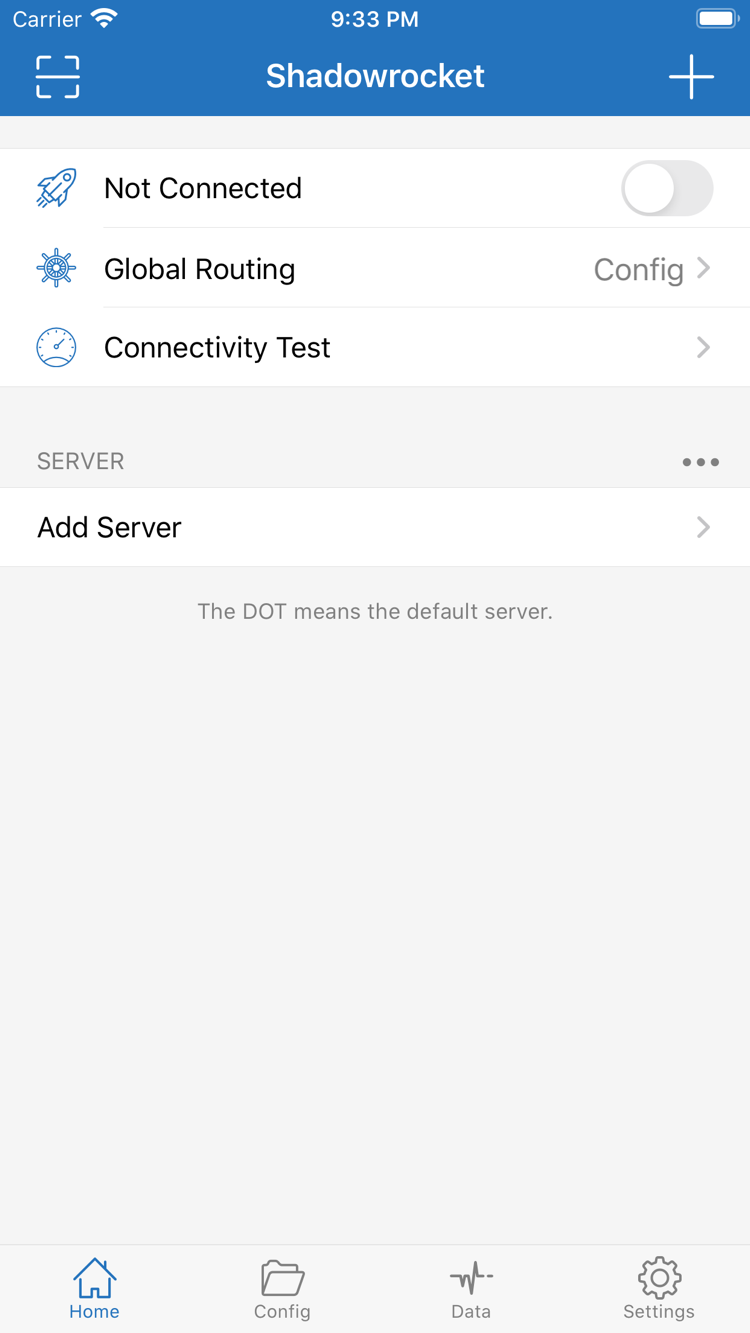
Open Settings and locate Test Method and Diagnostics. Test Method affects how tests are run; Diagnostics provides further troubleshooting tools. Results from different methods aren’t directly comparable. Options such as Proxy, TCP, and UDP each have their own purpose. For initial troubleshooting, leave the existing values unchanged and avoid switching multiple options at once.
For domain-related errors, first distinguish between a failure to resolve the address and a failure to establish the connection, then review the specific Diagnostics results. Don’t enter DNS settings from an unknown source just to see if they help. If only one destination fails while others work, narrow down the issue by checking its resolution, matched policy, and error message rather than immediately importing all subscriptions again.
When documenting the issue, keep the sequence of steps, error messages, selected mode, and test results. Before sharing screenshots or logs, remove full subscription links, passwords, authentication identifiers, and other personal information. If the connection still isn’t working, see Shadowrocket Won’t Connect: Troubleshooting Checklist. If the problem is getting the app, making a purchase, or restoring a previous purchase, see the App Store Guide instead; don’t mix those steps with connection troubleshooting.